Login

As an administrator, you have the option to set security measures for your Cloud Software login in the Login area.
In this chapter you will find:
- Password Policies
- Password Suggestions According to Password Policies
- Two Factor Authentication With YubiKey
- Two Factor Authentication With Google Authenticator
Please click always → Save after finishing your entries.
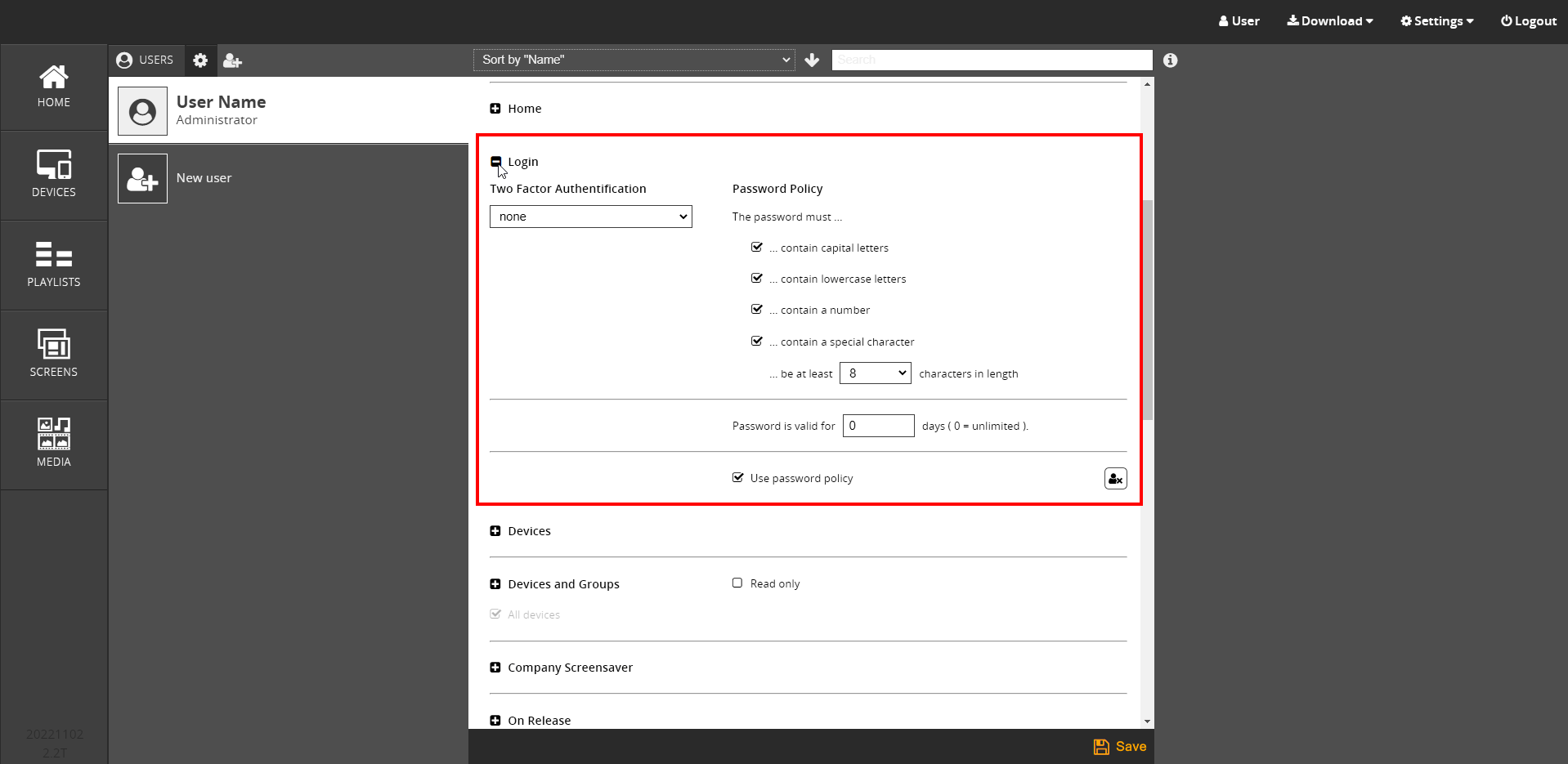

Password Policy
This section provides password policies for you.
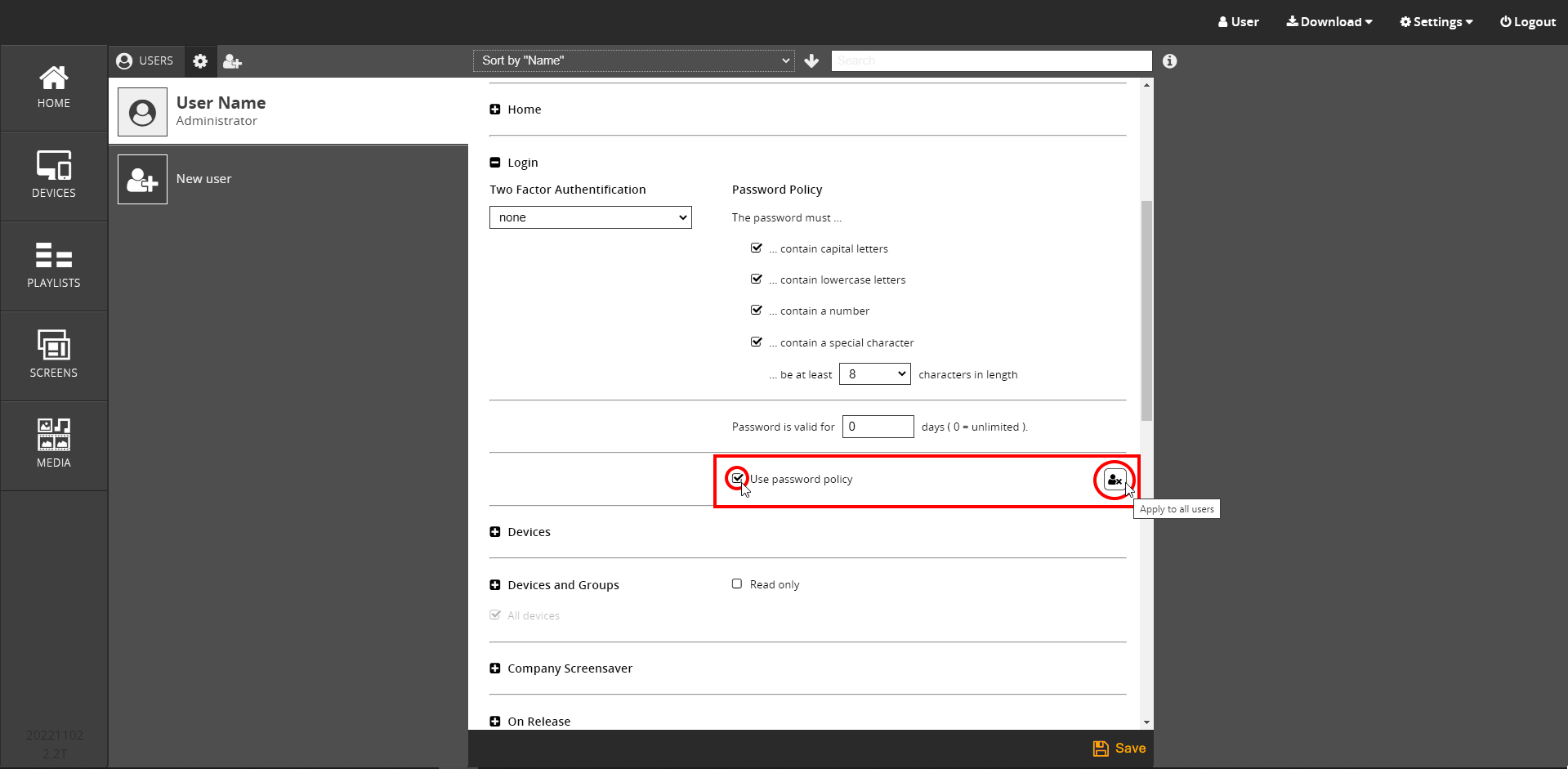
You will find the following password policies, which you can select by clicking in the respective box in front of them =  :
:
- The password must contain upper case letters
- The password must contain lowercase letters
- The password must contain a number
- The password must contain a special character
Below you can determine the minimum number of characters the password must consist of. The options → 5, 8, 10 and 12 characters are available after opening the selection menu.
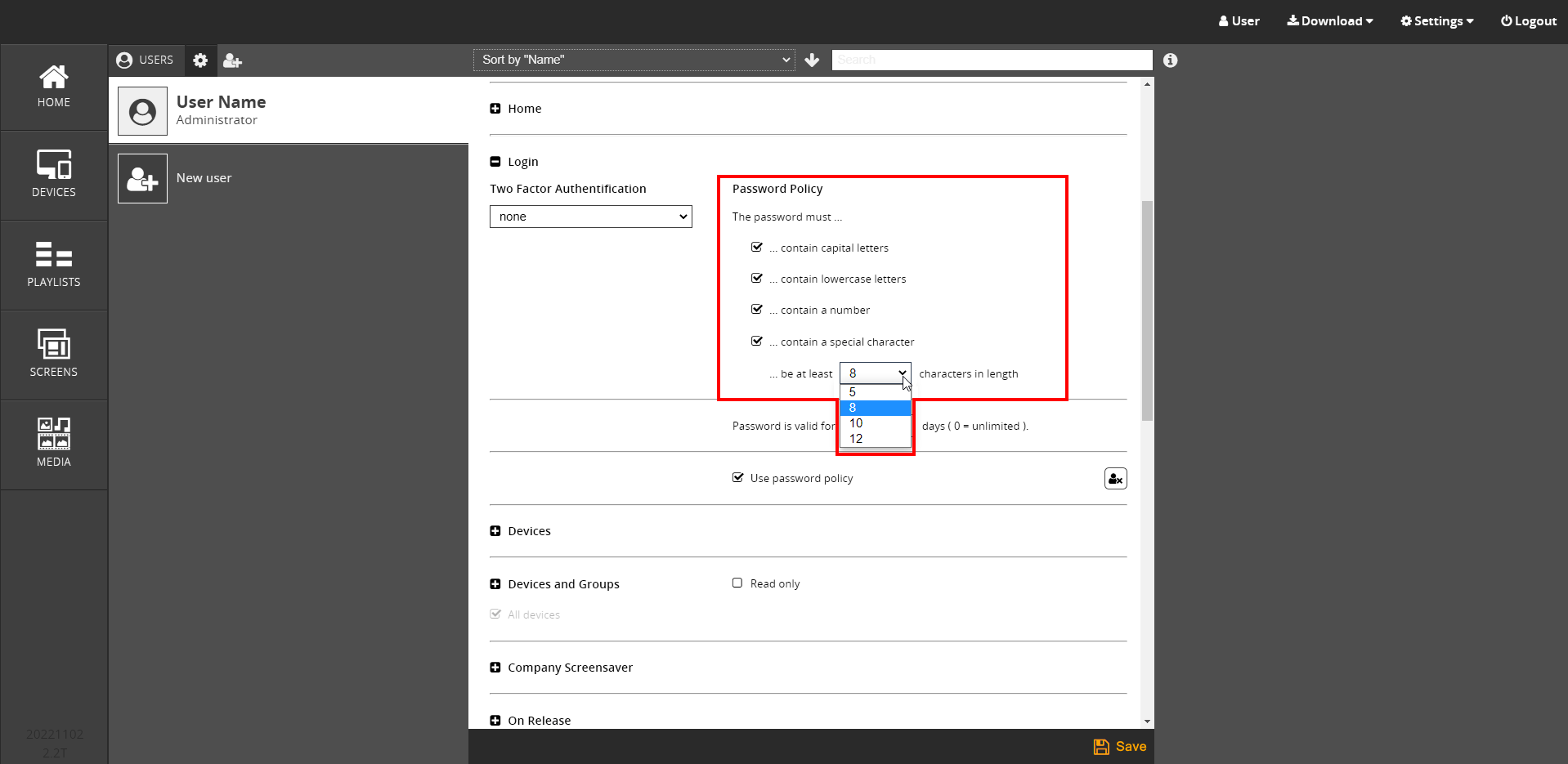
Furthermore, in the input field created below you have the option to set the duration of the password validity in days. For this purpose, an arrow function appears when you touch the field with the mouse pointer. However, you can also overwrite the numerical value 0 = unlimited with the number of days you want after a click.
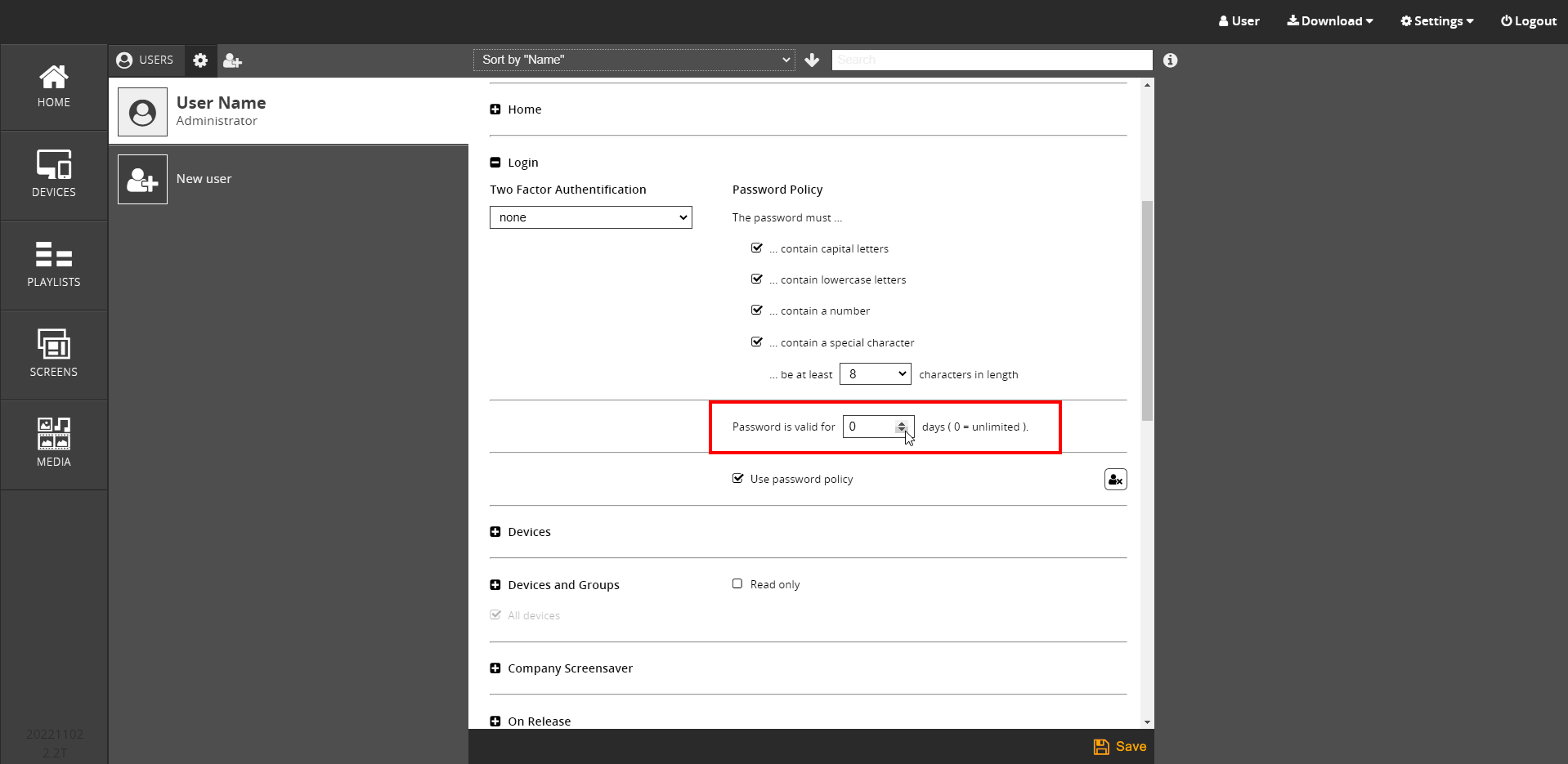

Use Password Policy
If you want to use the stored password policies for your own login, then activate the function → Use password policy.
By clicking the icon →  you can apply the password policies to all users. If you want to use them only for selected subusers, you can make the settings in the subuser.
To do this, read the chapter → Create New User.

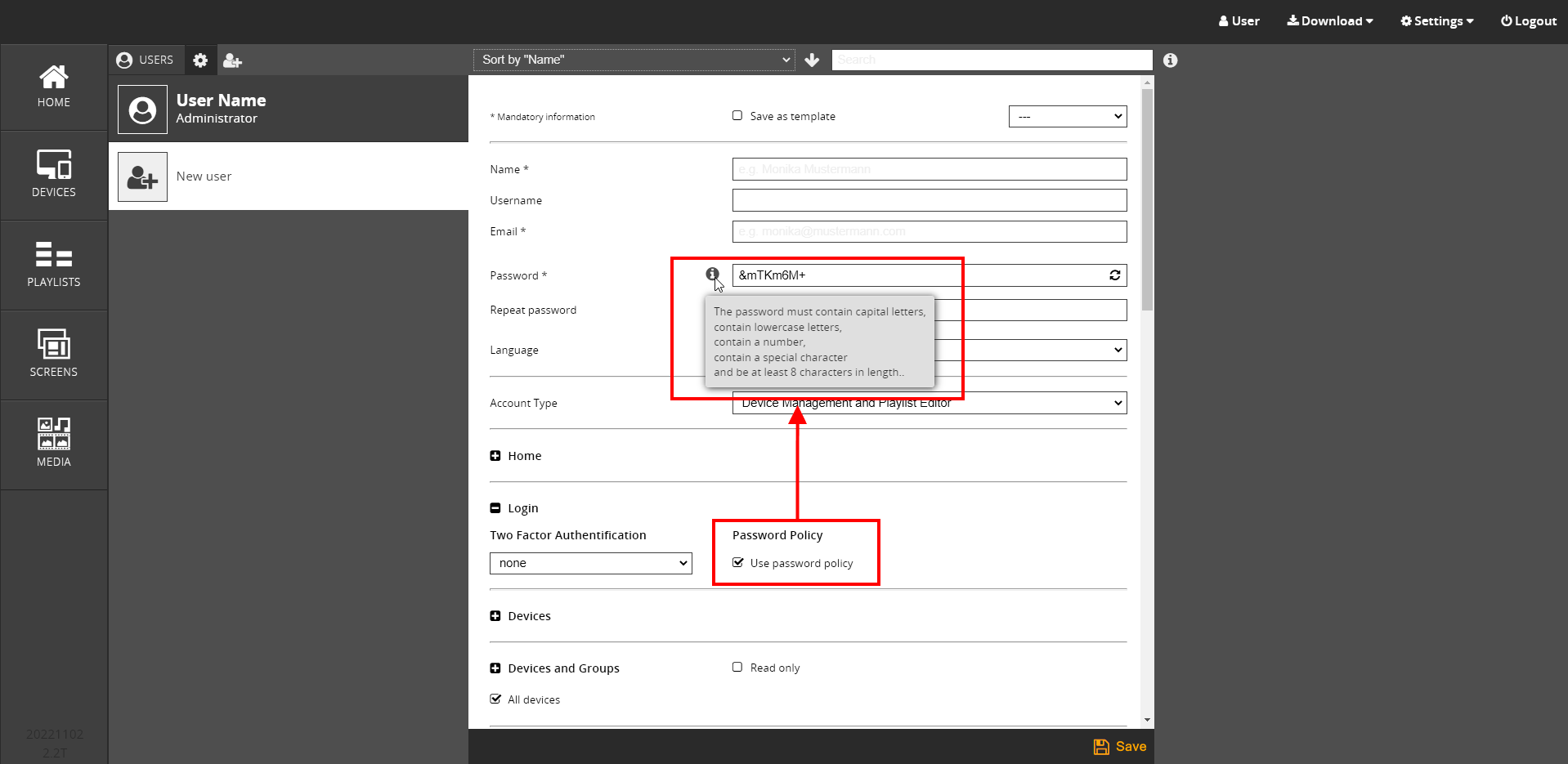
If you have activated the password policies for subusers, a password will be suggested according to the password policies when you create a new user.

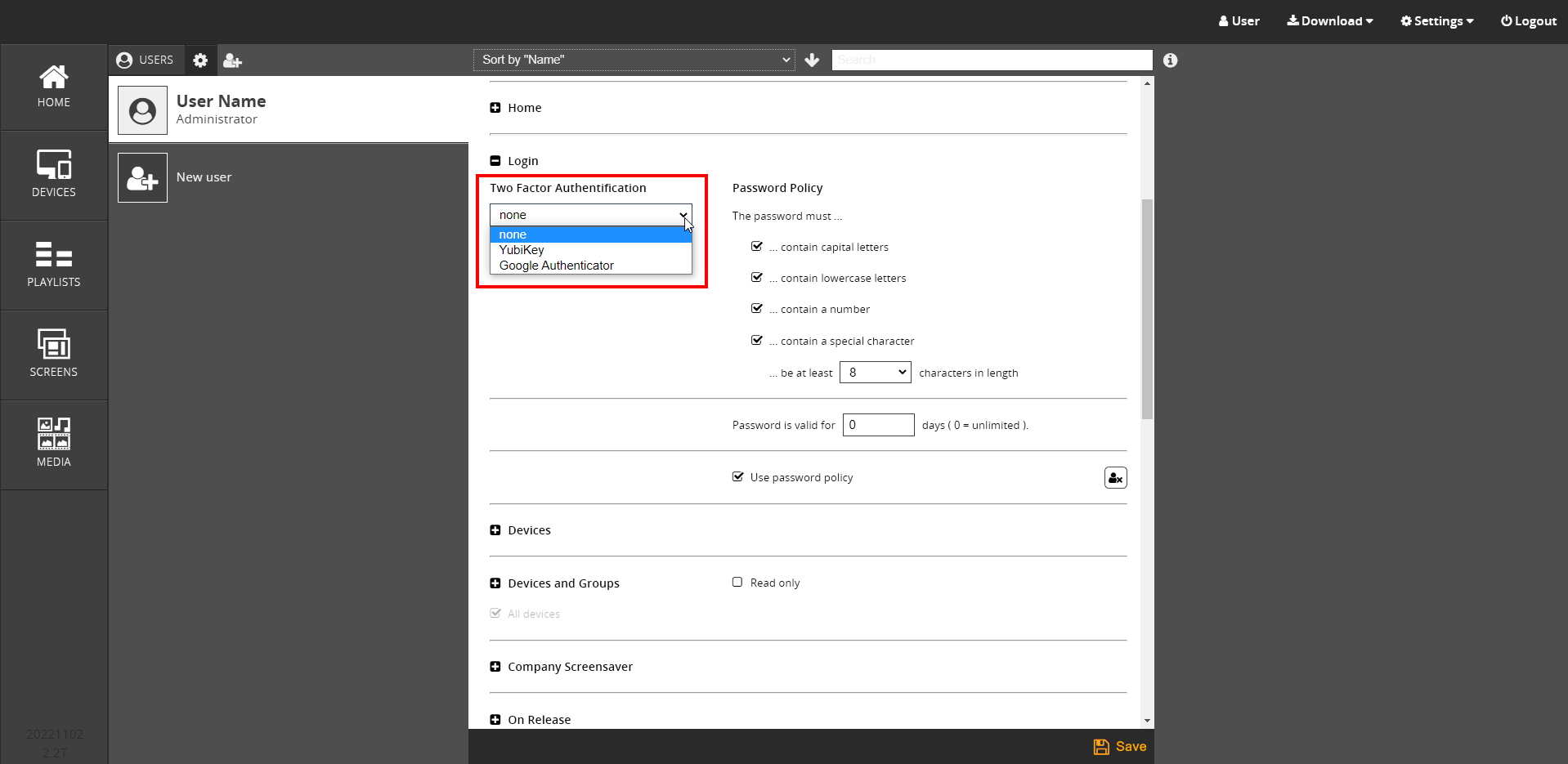
You can use a two-step authentication to log in to your Cloud Software account. For this, you have the option to choose between two variants:
1. YubiKey
2. Google Authenticator

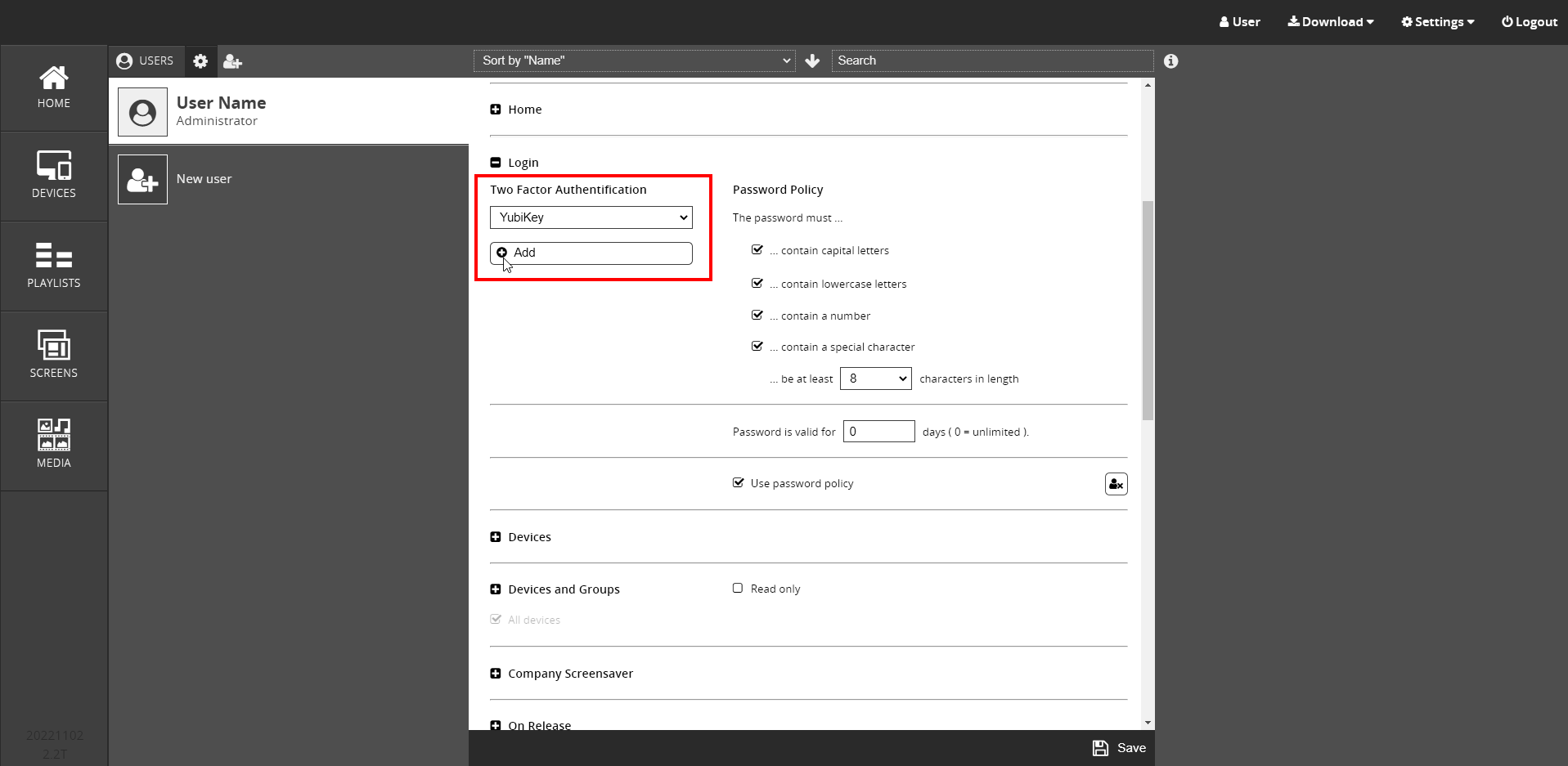
Two Factor Authentification With YubiKey
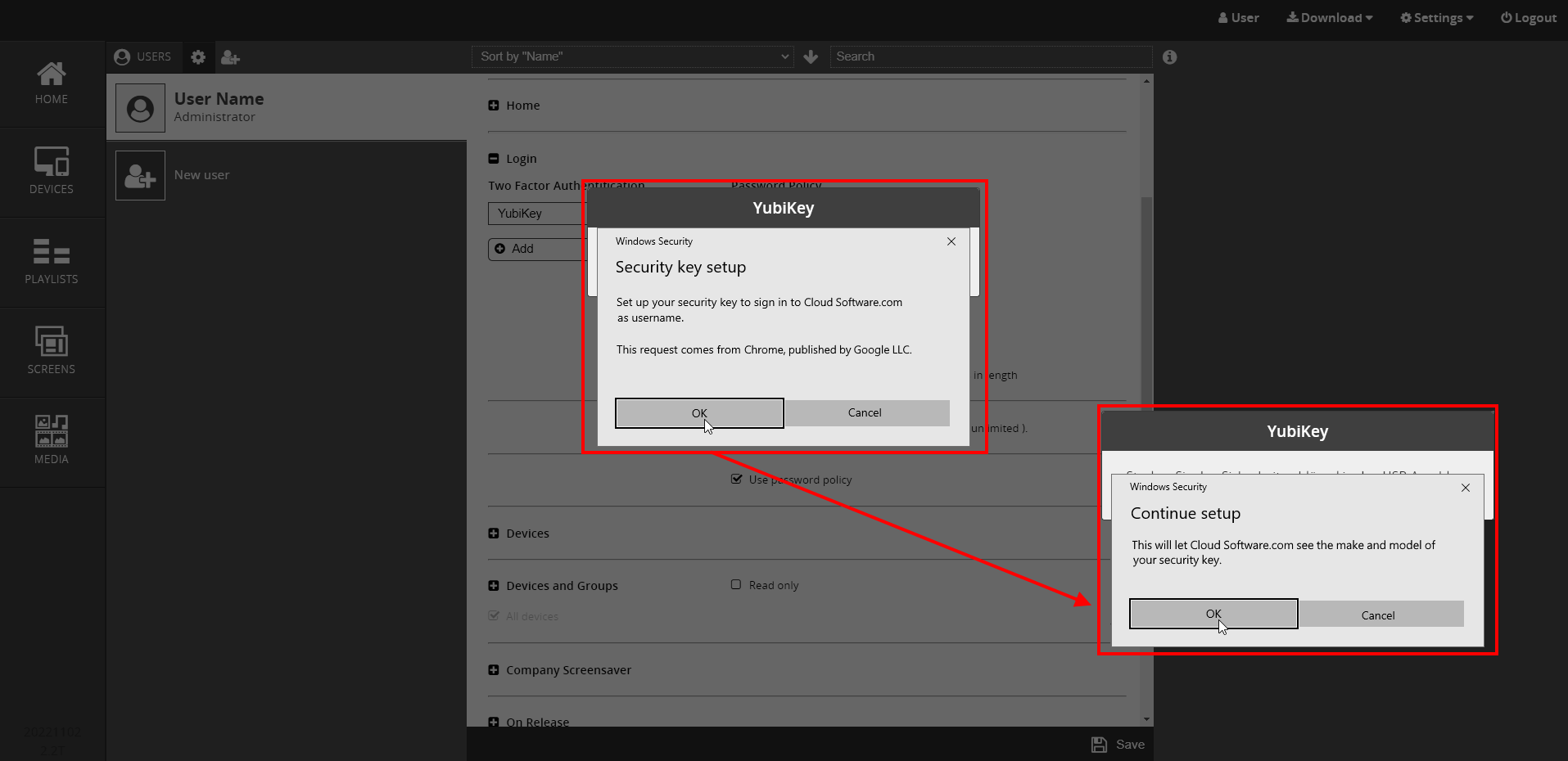
- Under Two Factor Authentification, select the YubiKey menu item and then click → Add.
- Now confirm the Set up security key window with → Okay and then confirm the following Continue setup window also with → Okay.
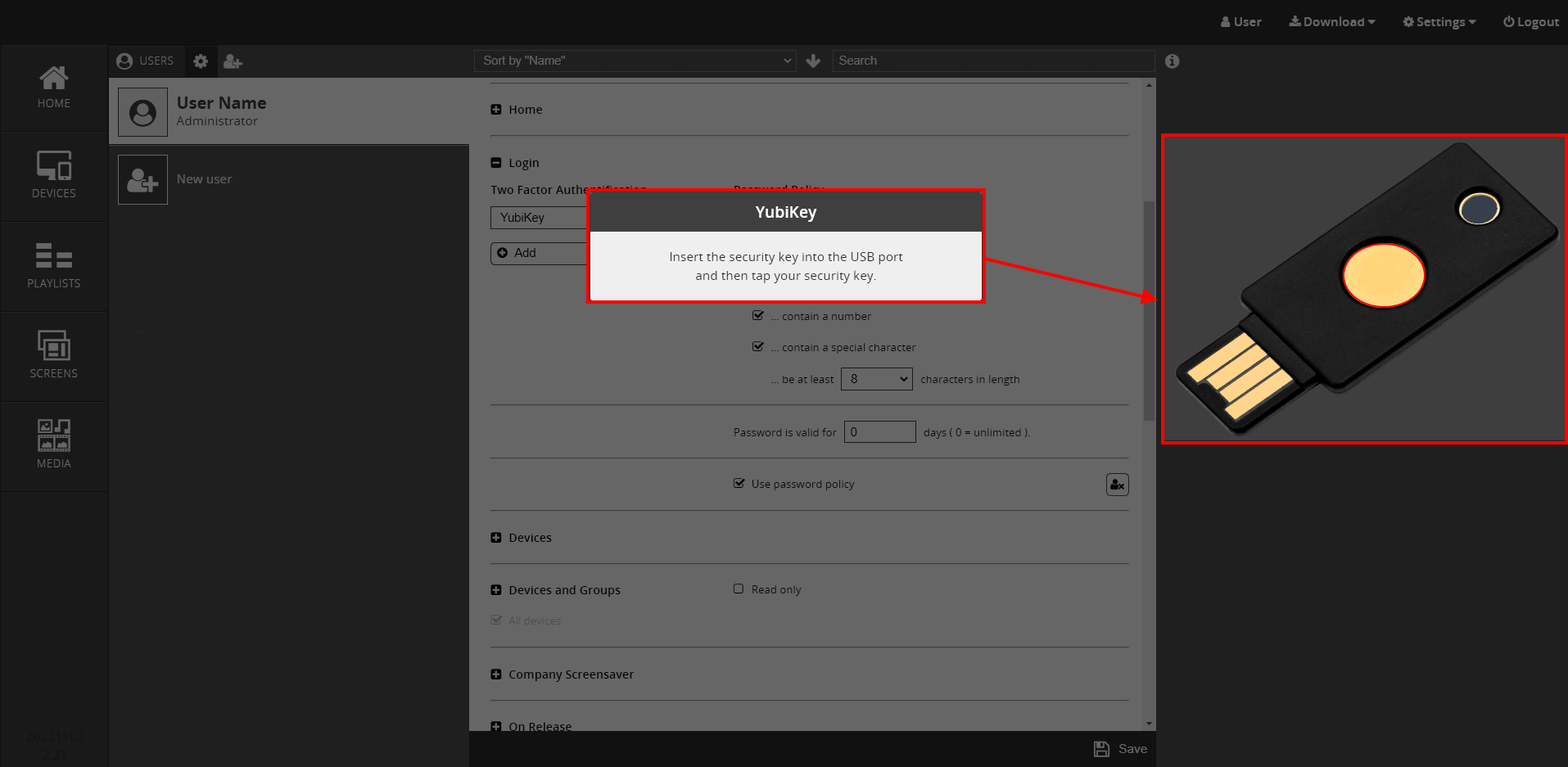
- Insert the YubiKey into the USB port and confirm by pressing the YubiKey button. You have now set the two factor authentication with the YubiKey for your account.
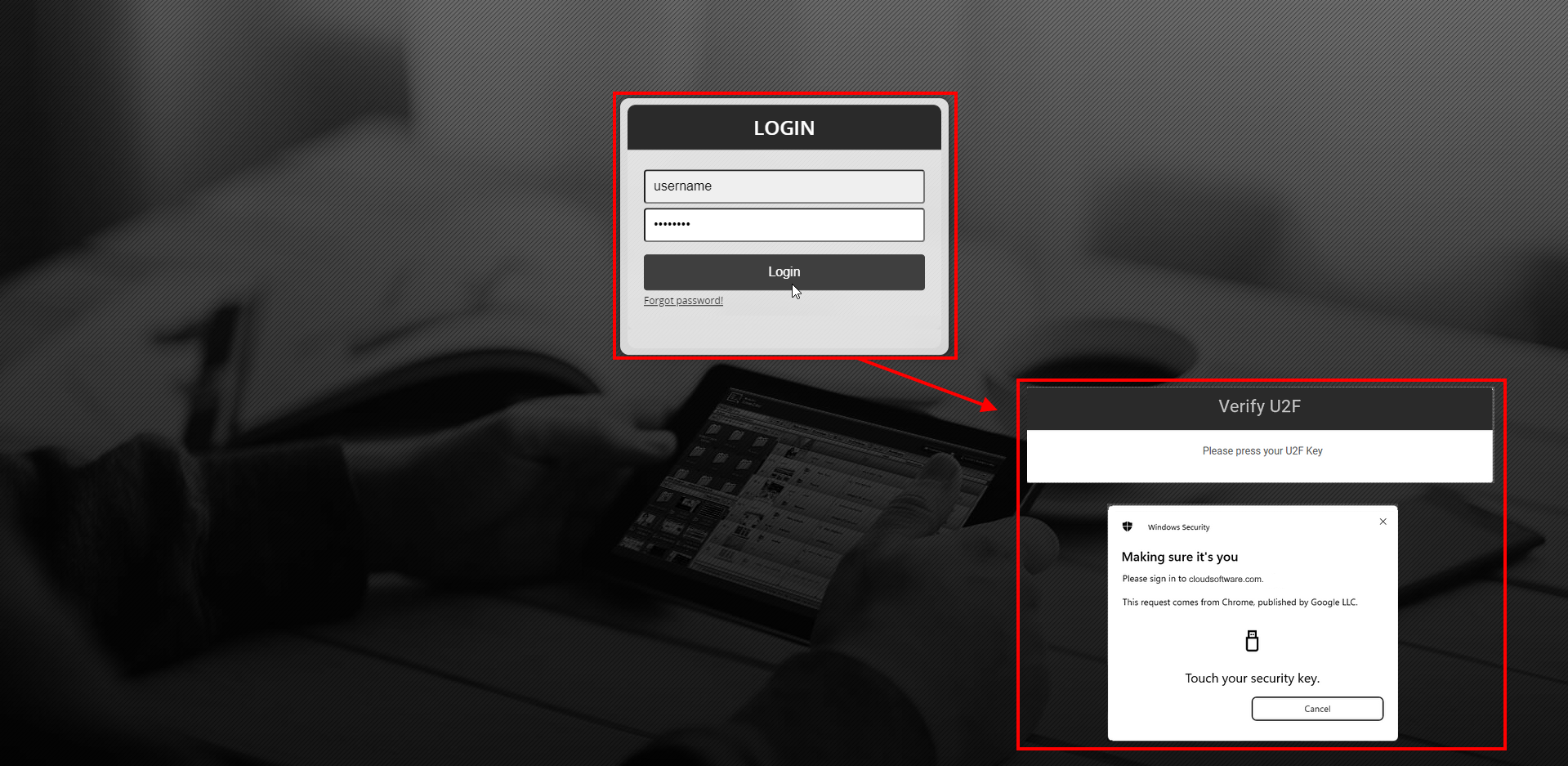
- From now on, the login to your Cloud Software account will occur with a two factor authentication. First enter your login data and then press the button of your YubiKey.

Two Factor Authentification With Google Authenticator
- Select Google Authenticator under Two Factor Authentication.
- Click on → Add.
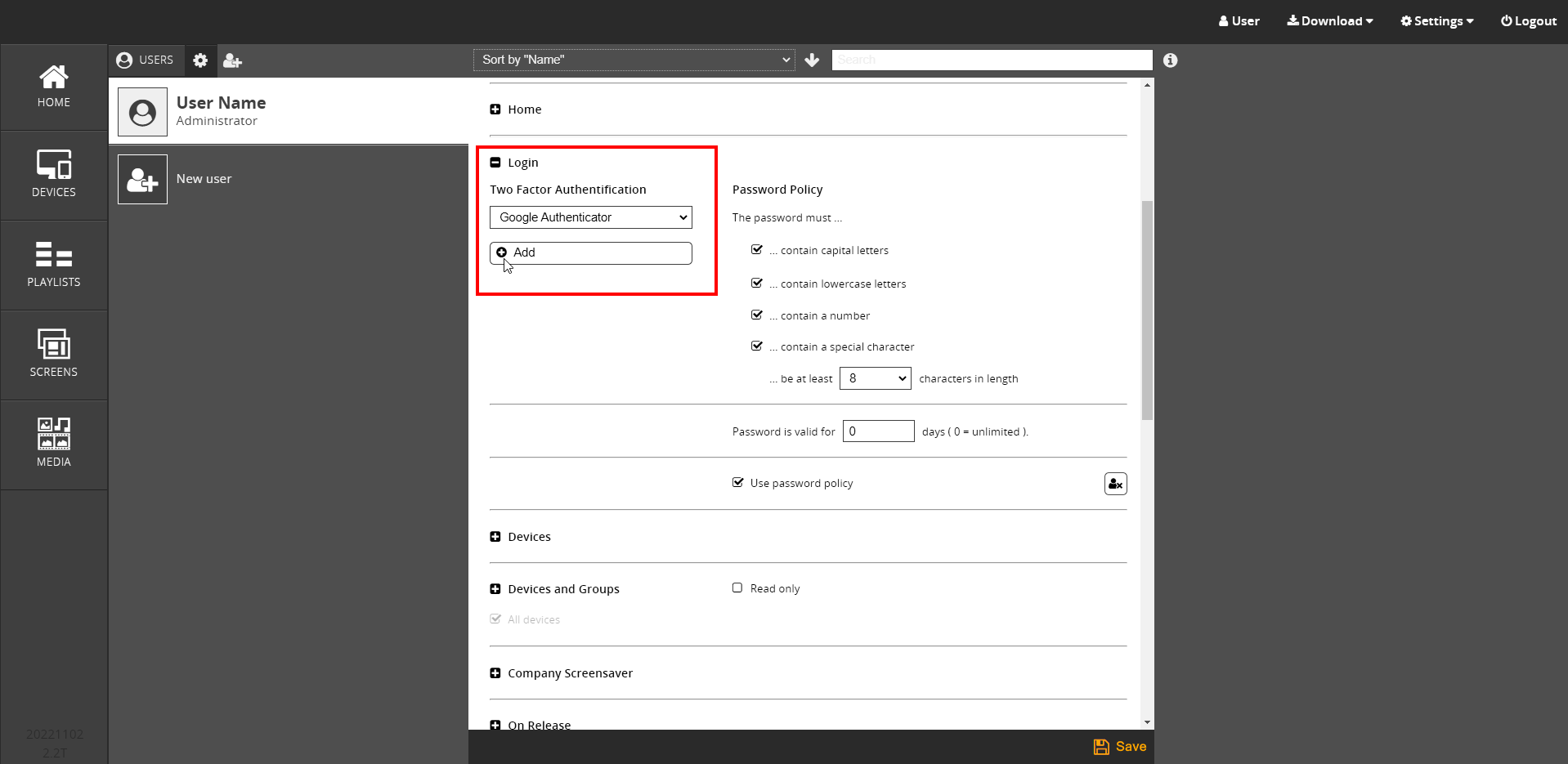
- Click on → Okay.
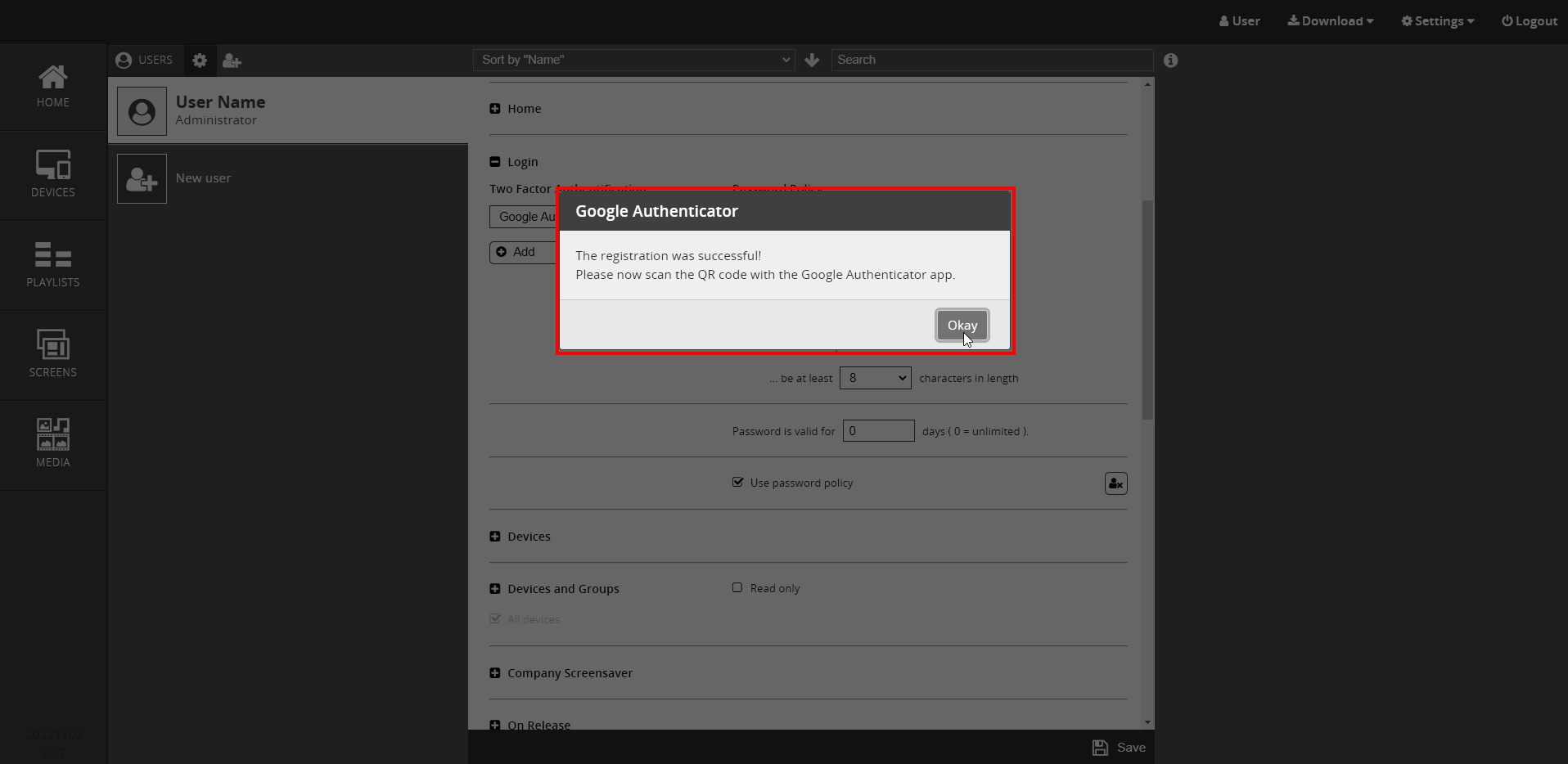
- Clicking → Okay closes the Login area to provide you with a QR code.
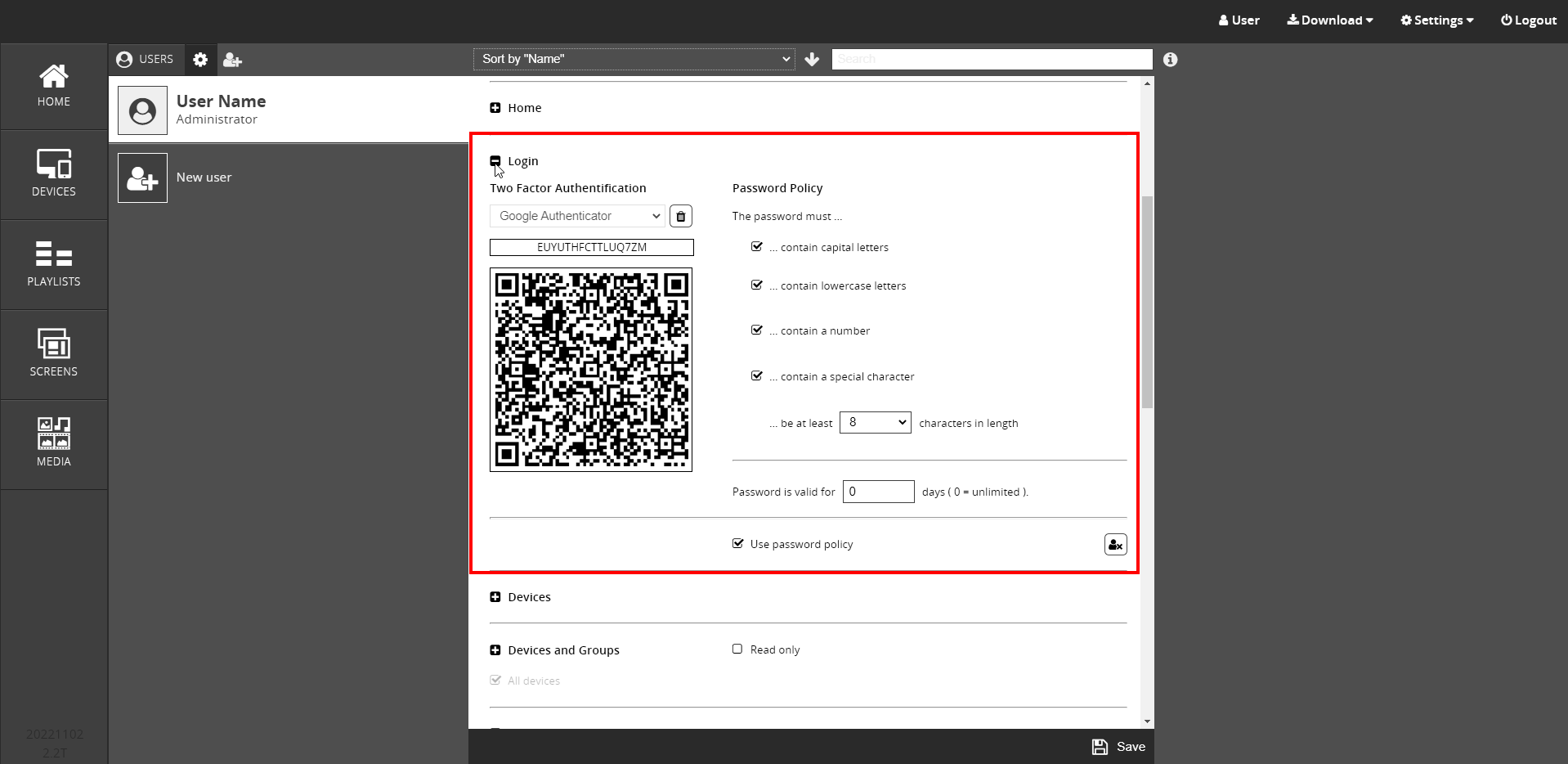
- The → Login area opens again and you will now see a QR code.
- Download the Google Authenticator app from an app store onto your mobile device.
- Open the Google Authenticator app and press the + symbol.
- Now the App asks you:
Would you like to scan a QR code or enter a setup key?
Select → Scan QR code.
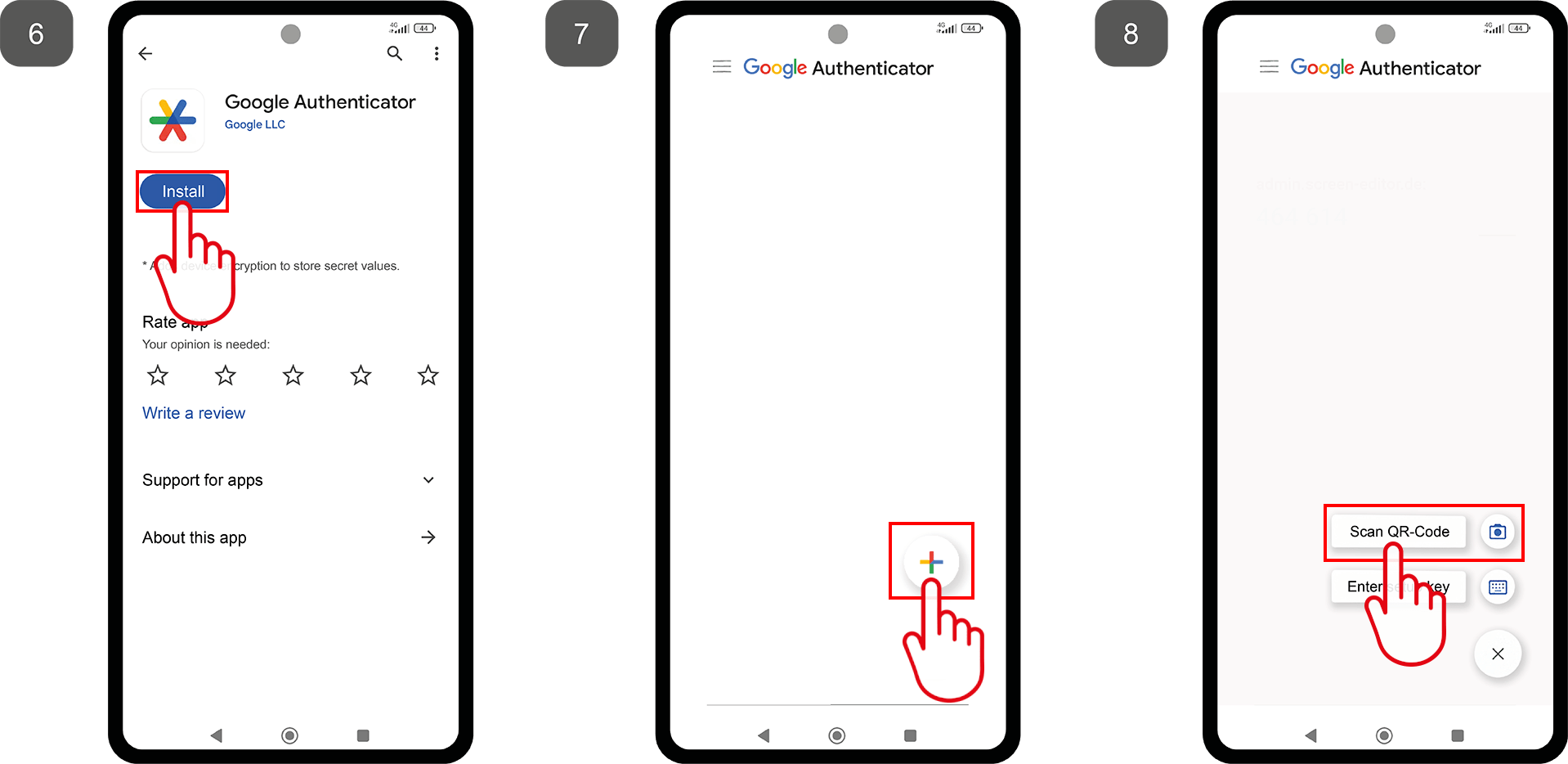

- Scan the monitor QR code with the Google Authenticator app.
- The app adds the Cloud Software automatically to the app list.
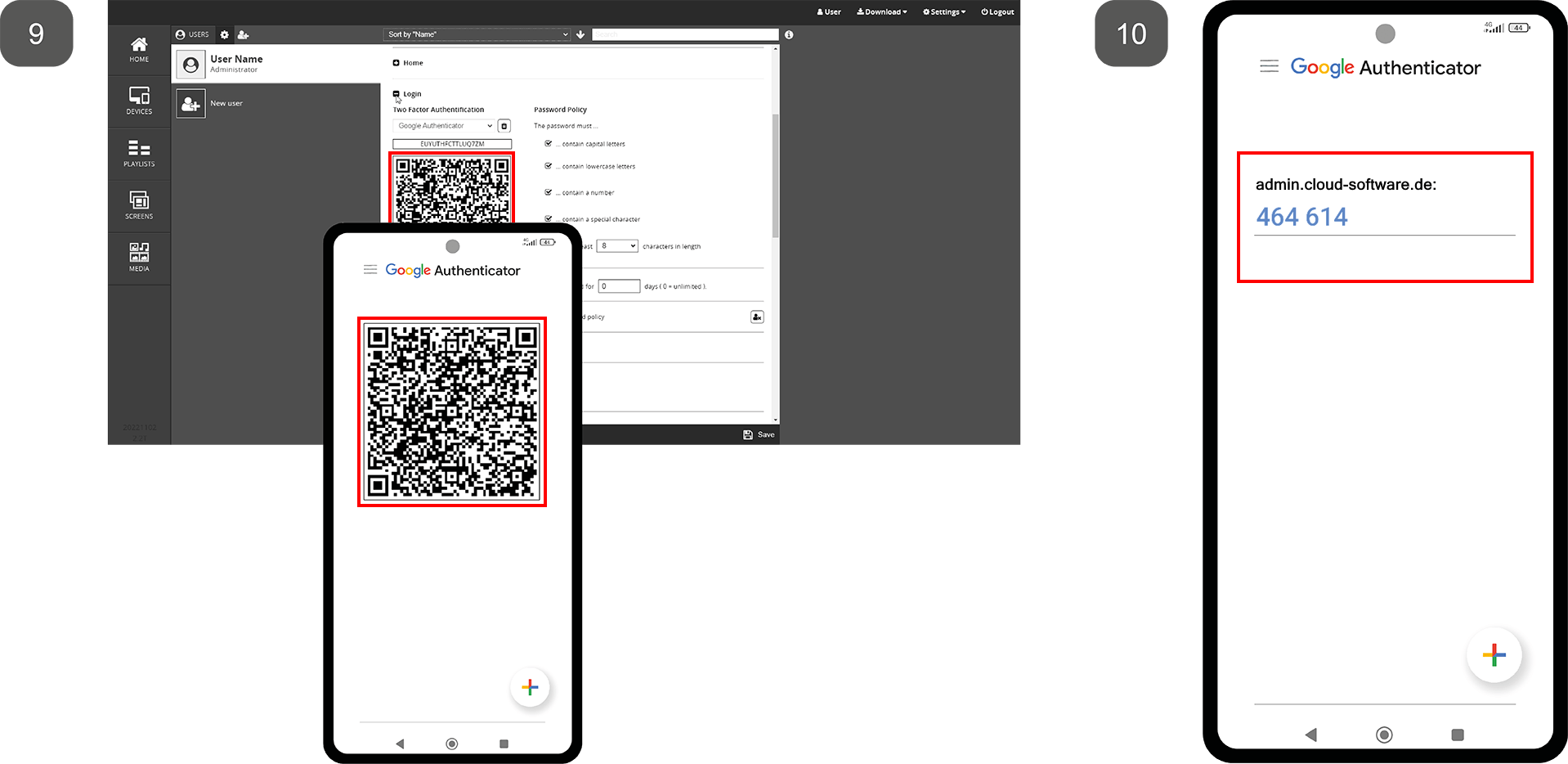

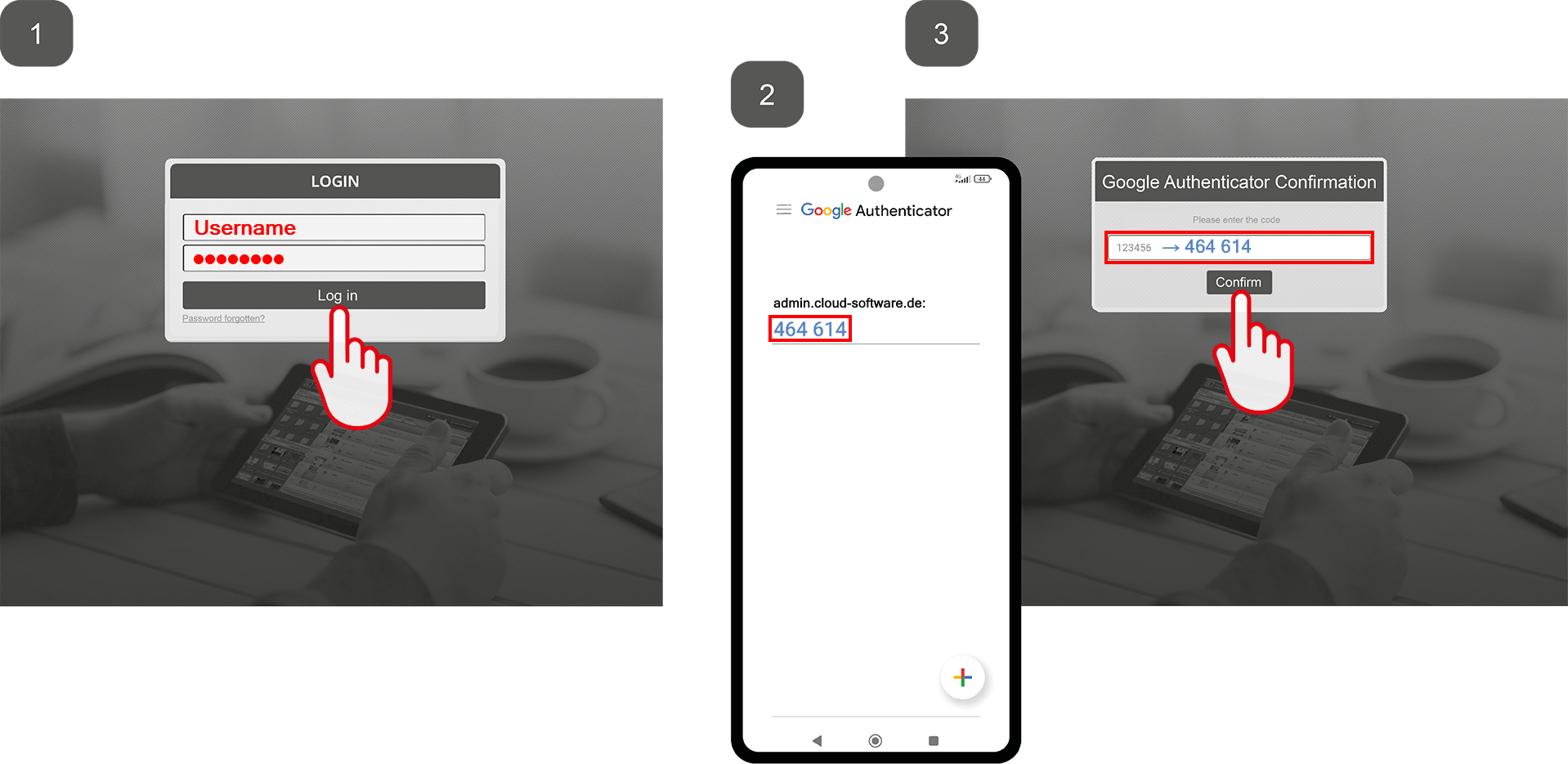
From now on, 2-factor authentication will take place every time you log in to the Cloud Software.
Please proceed as follows:
- Enter your login data in the Cloud Software.
- Open the Google Authenticator App.
- Enter the numerical code from the app in the query field of the Cloud Software.